
How to film video in Sims 3
A complete guide to filming in The Sims 3: settings, camera controls, camera rails, and optimization.
Filming video in the game may seem difficult at first, but with practice the process becomes familiar and much easier. Here are the main parts of filming in Sims 3:
- In-game camera or screen capture
- In-game settings
- Sims3.ini settings
- Starting a recording
- Camera movement speed
- Video format
In-game camera or screen capture
External capture tools such as Fraps, Bandicam, or Shadowplay can cause freezes if your computer cannot handle them. The built-in camera records every frame, so the result is usually smoother.
Recommended settings:
- 30 fps is the stable option
- 60 fps only if your computer can handle it
The built-in camera:
- does not record ReShade
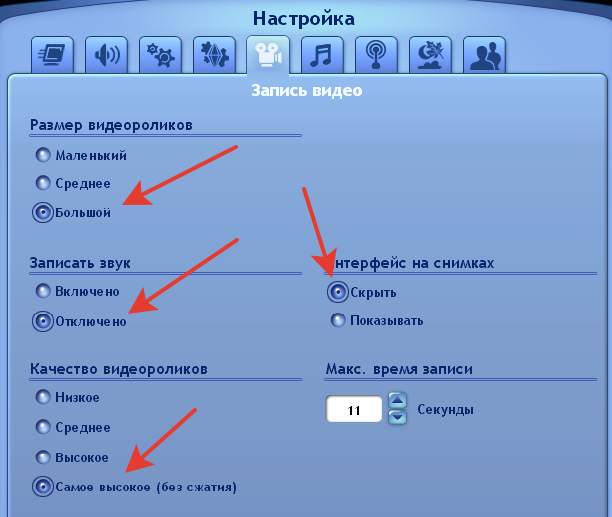
- has a duration limit of about 11 seconds
In-game settings
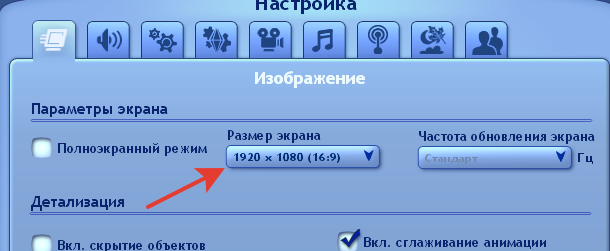
Set the visual quality options as high as possible.
Recommended resolutions:
- 1280x720
- 1920x1080
- 2560x1440
- 3840x2160
Important: the FPS setting is only available in fullscreen mode.
Sims3.ini settings
Even with maximum in-game settings, the game records video in poor quality. You can fix this through the config file.
Example path:
C:\Games\The Sims 3\Game\Bin
Open Sims3.ini and add or edit the following:
[VideoRecording]
LowQuality = video:vp6, audio:adpcm, fps:60.0, bitrate:1000
MediumQuality = video:vp6, audio:adpcm, fps:60.0, bitrate:2000
HighQuality = video:vp6, audio:adpcm, fps:60.0, bitrate:4000
MaxQuality = video:rgb24, audio:pcm, fps:60.0, bitrate:6000
Small = 1920, 1080
Medium = 1920, 1080
Large = 1920, 1080
The resolution should match your game resolution.
Use 60 fps only on powerful PCs. Otherwise, set it to 30.
Recording and camera controls
Main keys:
TAB- free cameraV- record videoC- screenshot
Movement:
W A S D- moveQ / E- up / down
Camera rails:
Ctrl + 5-9- save a camera point5-9- move to a saved pointShift + 5-9- jump instantlyAlt + 5-9- delete a saved point
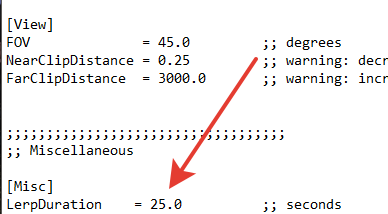
Camera movement speed
This is edited in the file:
VideoCamera
Path:
C:\Games\The Sims 3\GameData\Shared\NonPackaged\Ini
Change the transition time between saved camera points.
Video format
Videos are saved here:
Documents\Electronic Arts\The Sims 3\Recorded Videos
The format is .avi, and files can be about 4GB.
It is recommended to convert them to .mp4.
Useful programs:
- HandBrake
- Movavi
- Freemake
This reduces file size without a noticeable loss of quality.